


How can I edit the properties for multiple devices simultaneously? (2.0)
This article is a how-to guide on using the export/import CSV feature to edit multiple device properties at once.
Edit multiple devices by exporting the device table as a CSV and editing the file directly.
The following devices can be edited in this way:
- Inverters
- MPPs
- String combiners
- Strings
What properties can be edited?
| Supported changes | Not supported |
| ✅ Name | ❌ ID or Unique Identifier |
| ✅ Serial number | ❌ Type |
| ✅ Status | ❌ Datasource name |
| ✅ Parent ID | ❌ Datasource status |
| ✅ Capacity kWp | ❌ Number of rows or columns |
| ❌ Column titles |
Export the CSV
This is the file you can edit and import back in.
1. Log in with your Solytic account.
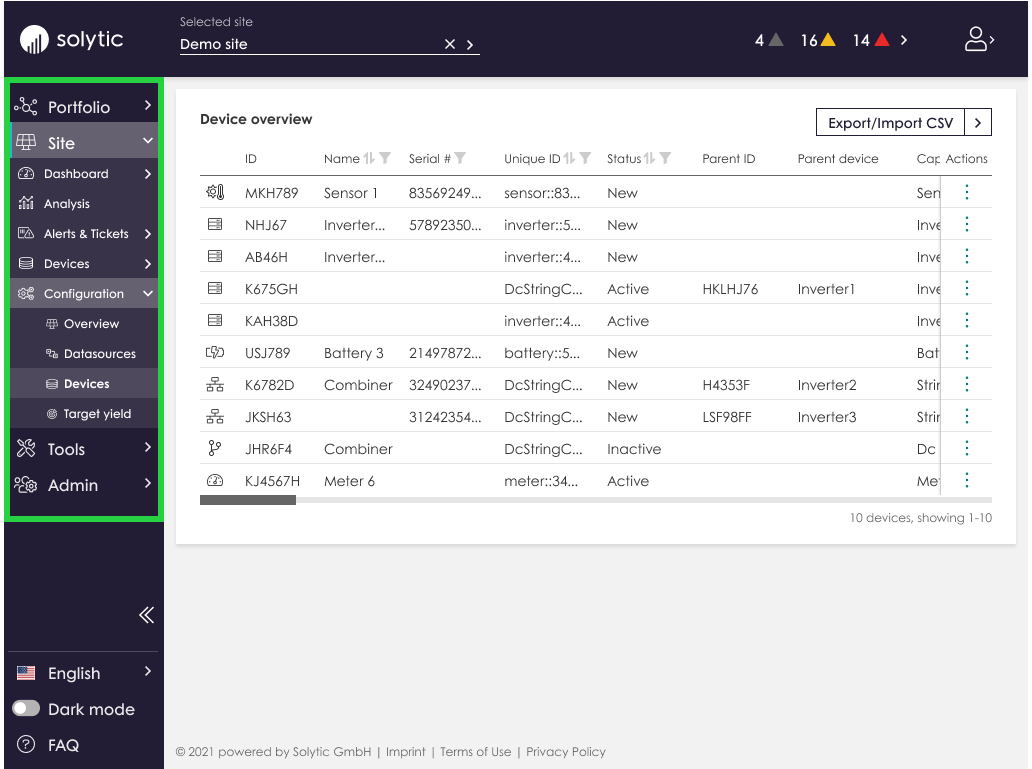
2. Navigate to Site > Configuration > Devices
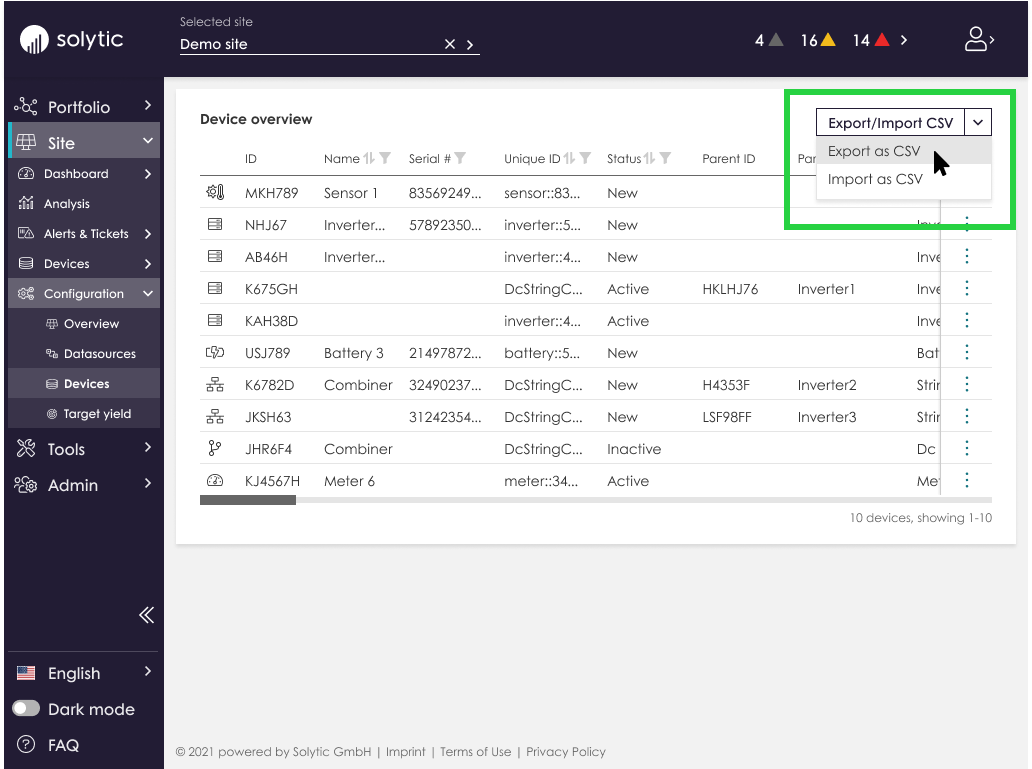
3. Click the button in the top right corner and select “Export as CSV” from the menu
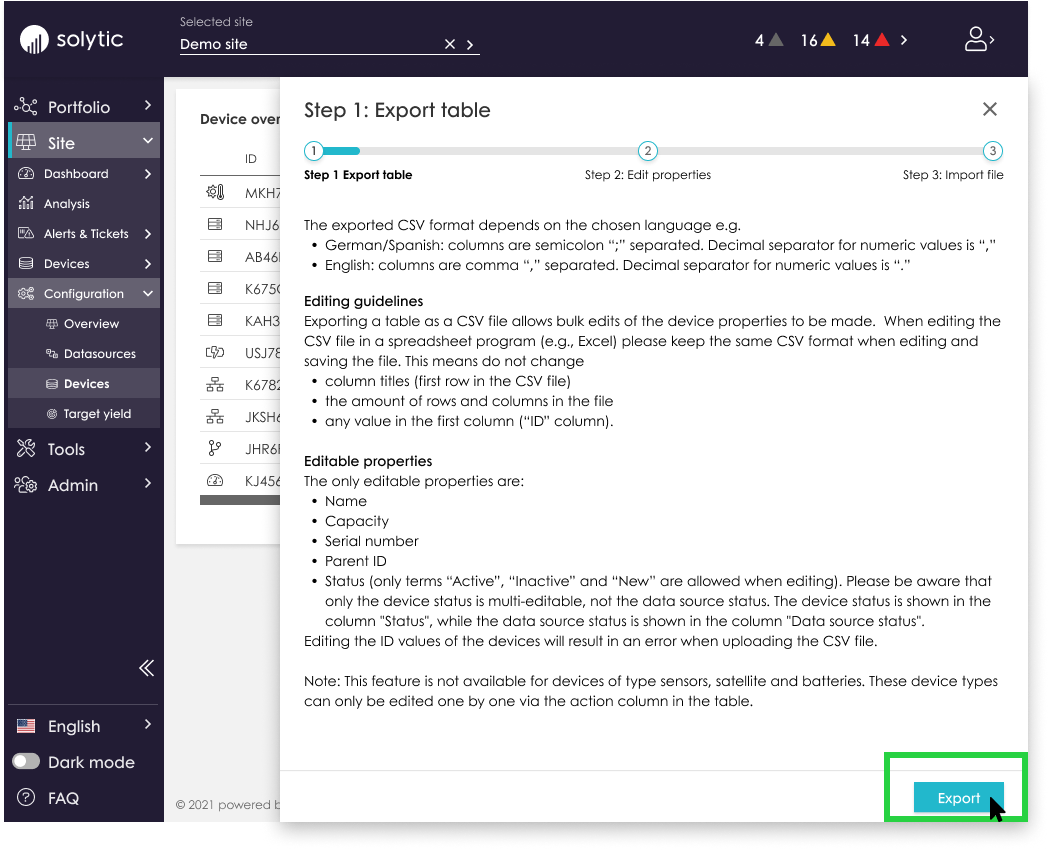
4. Click on “Export” in the lower right corner
5. Once the download is completed, you can open the CSV file and make changes in the following columns:
| Name | Serial # | Status |
Parent ID | Capacity kWp |
|---|
6. Save your changes and make sure the file type is still CSV
Import the CSV
Now you can import your changes.
1. Return to Site > Configuration > Devices
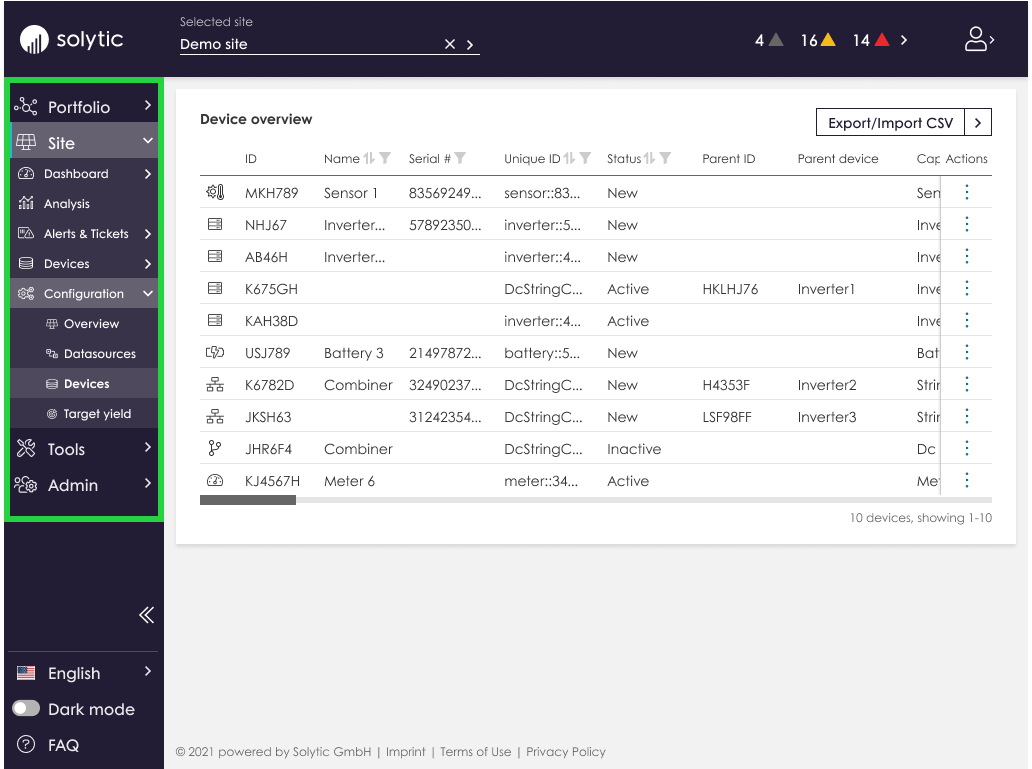
2. Click the button in the top right corner and select “Import CSV” from the menu
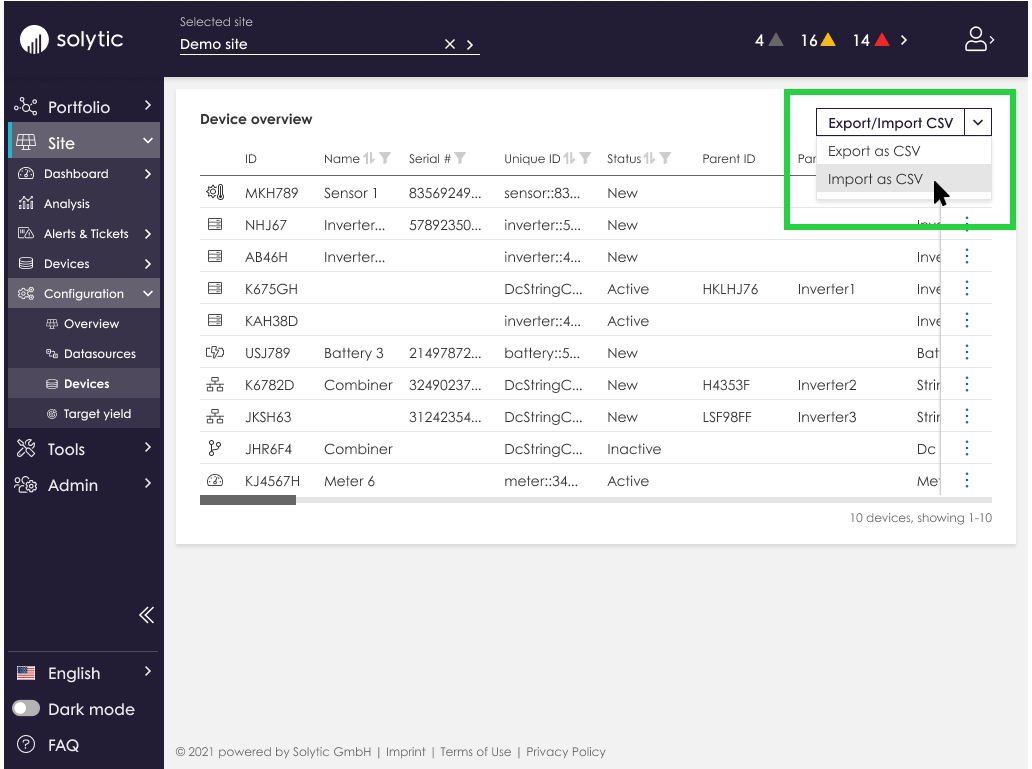
3. Drag and drop or select your file via the “Browse” button, and click “Start to edit devices”

4. Done!
If you are having problems importing the new file, check the troubleshooting tips below
Please note: Export is not available for these devices:
| ❌ Meter |
| ❌ Sensor |
| ❌ Satellite |
| ❌ Wallbox |
| ❌ Battery |
These device types can be edited individually via the actions column in the table.

Troubleshooting
Have you followed the steps above and the file won’t import?
- Make sure only cells that support changes have been edited. Check the table at the top of the page to see what can be changed.
- Is the file type CSV?
- Double check the size of the file is under 2MB
- Is the language used in the file consistant? For example: a file exported in German should be edited and and imported in German
- Double check the status column for spelling and terms used. Only the following terms will be accepted:
- New
- Active
- Inactive
- If working with the raw file:
- Make sure no spaces have been added to the file.
- Is the correct character being used to separate the columns?
English – Columns are separated with a comma

German / Spanish – Columns are separated with a semi-colon

English – Numbers use a period as the decimal character

German / Spanish – Numbers use a comma as the decimal character

-
- Is the correct type of decimal being used for numeric values?
- Export a fresh CSV and try again
If all else fails and the file simply won’t import, contact our customer service team. We’re here to help!